Google Messages is my default messaging app, and for the most part, it works fine. But over time, my inbox became increasingly chaotic.
One-Time Passwords (OTPs) piled up daily, while promotional messages and random service alerts pushed genuine conversations further down the list. Important updates from my bank or messages from family and friends were often buried.
There were also times when I would see a notification on my phone and ignore it, assuming it was just another promotional or spam message.
However, after I adjusted a few default settings, I noticed an immediate improvement.
Here’s how I organized it so that opening my inbox no longer felt like digging through clutter.
Why Google Messages is, hands down, the best way to text on Android
Texting on Android at its absolute best
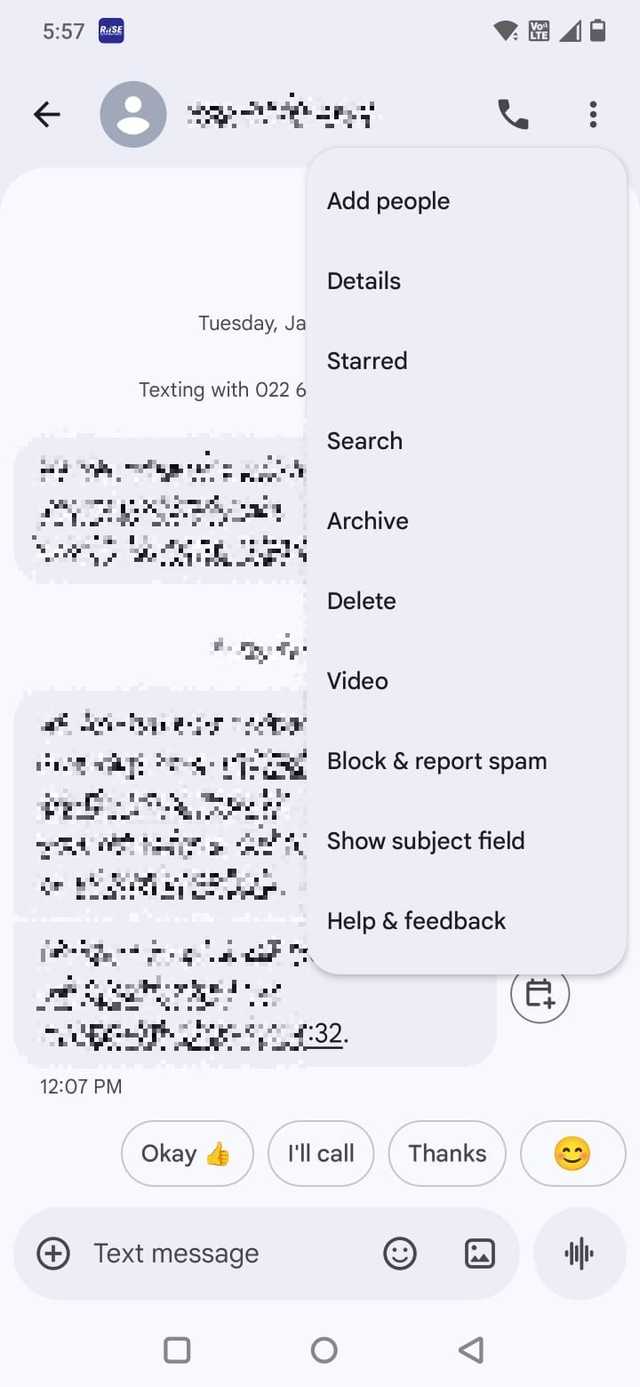
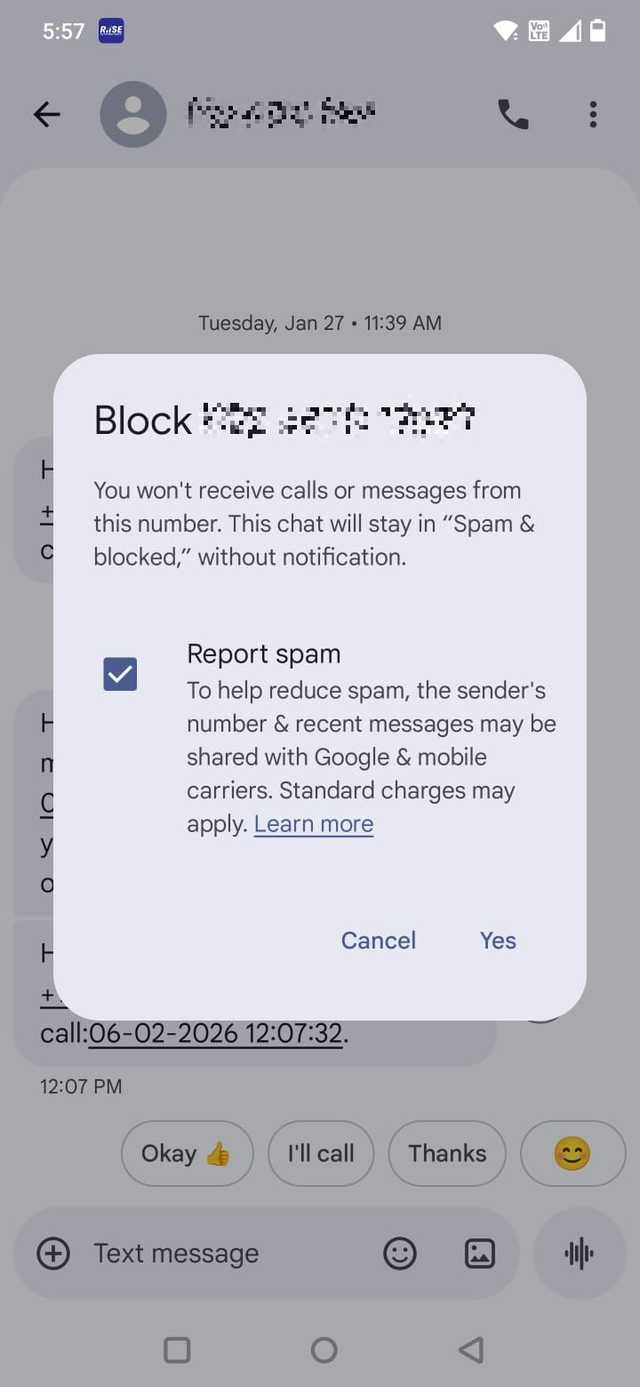
One thing that made a real difference was being a little more proactive with spam instead of just ignoring it.
Some numbers would send the same promotional message every few days. Letting them sit there only made the inbox feel more crowded.
In Google Messages, you can open a conversation, tap the three-dot menu, and choose Block & report spam. Reporting helps improve filtering, and blocking stops that sender from landing in your main inbox again.
But here’s something I overlooked for a long time: many promotional messages now include an Unsubscribe option at the bottom. When you tap it, you can choose a reason for unsubscribing, and you’ll stop receiving messages from that sender altogether.
After I started blocking repeat offenders and using the unsubscribe option when available, fewer distractions were competing with real conversations.
I turned on auto-delete for OTPs
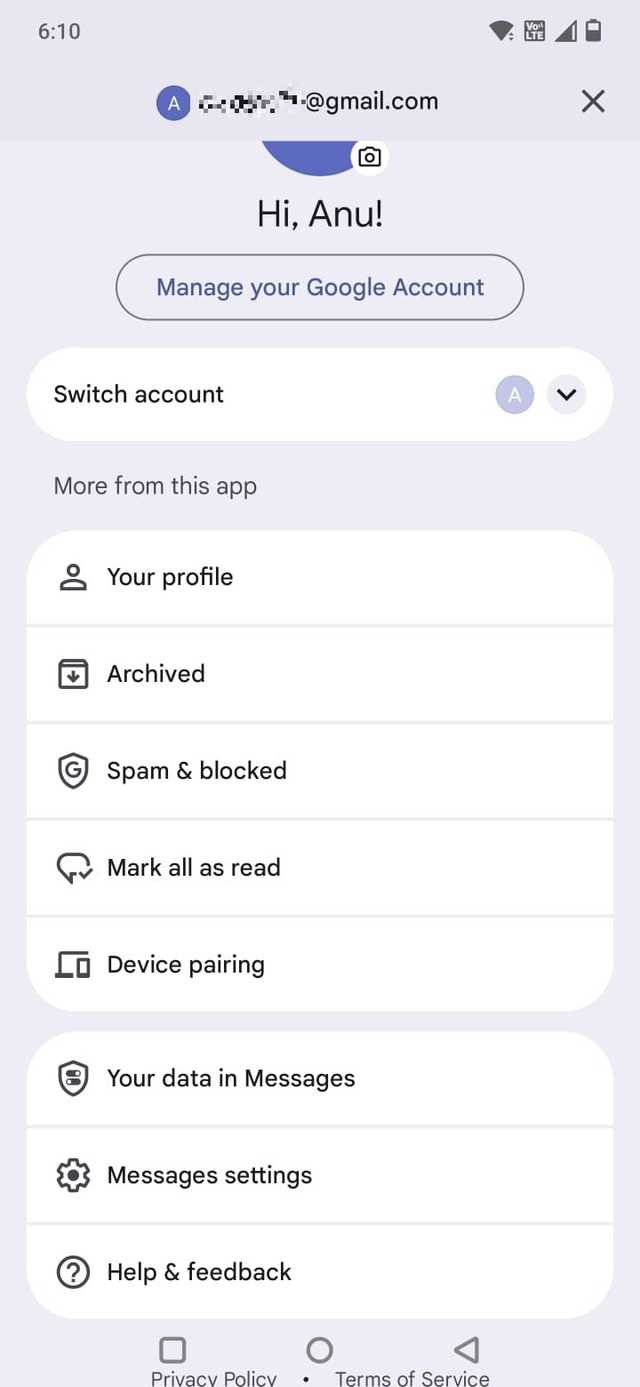
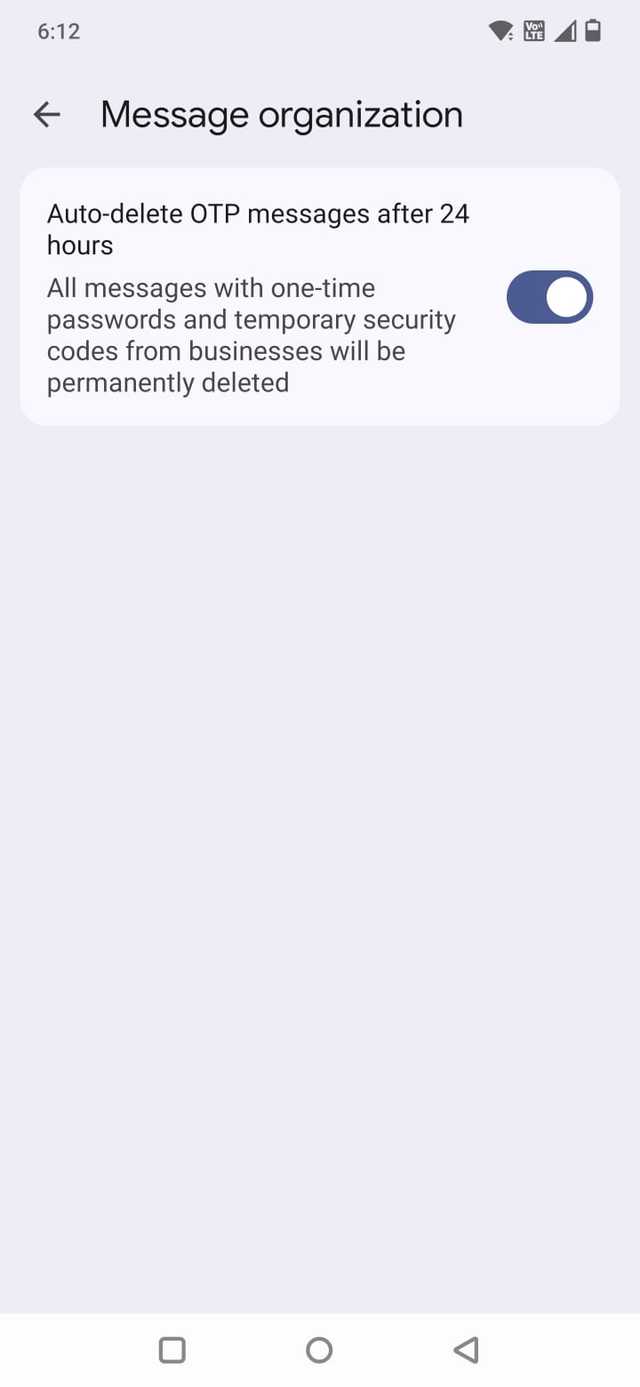
OTPs were the biggest source of clutter in my inbox. Every time I signed in somewhere, a new one-time password would land in my messages. Most of them were useful for about 30 seconds. After that, they just sat there, pushing conversations further down.
I did not realize Google Messages has a built-in option to handle this automatically.
Tap your profile icon in the app and select Messages settings. Tap Message organization and toggle on Auto-delete OTP messages after 24 hours.
When I turned that on, those temporary codes stopped piling up.

5 underrated Google Messages features that save your time
Little things that speed things up
I customized notifications for important conversations

Every text can feel equally urgent by default, whether it is a bank alert, a group chat, delivery updates, or family messages. It results in notification fatigue. When everything pings the same way, you stop reacting to any of it.
In Google Messages, you can customize notifications per conversation.
I opened chats with close family, a couple of friends, and work contacts, and modified the notification settings.
Here is how to do it:
- Open the conversation in Messages.
- Tap the three-dot menu icon.
- Select Details.
- Tap Notifications.
- Tap Ringtone to change it.
I set family and work contacts to a distinct notification tone.
Then I did the opposite for group chats. I opened each one, went into Notifications, and turned off the Allow notifications toggle.
Now, when my phone buzzes, I have a better sense of whether it’s something I should check immediately or something that can wait.
In Google Messages, you can long-press a conversation and tap the pin icon. That chat stays fixed at the top of your inbox, no matter how many OTPs or promotional messages come in.
I started archiving instead of letting threads pile up
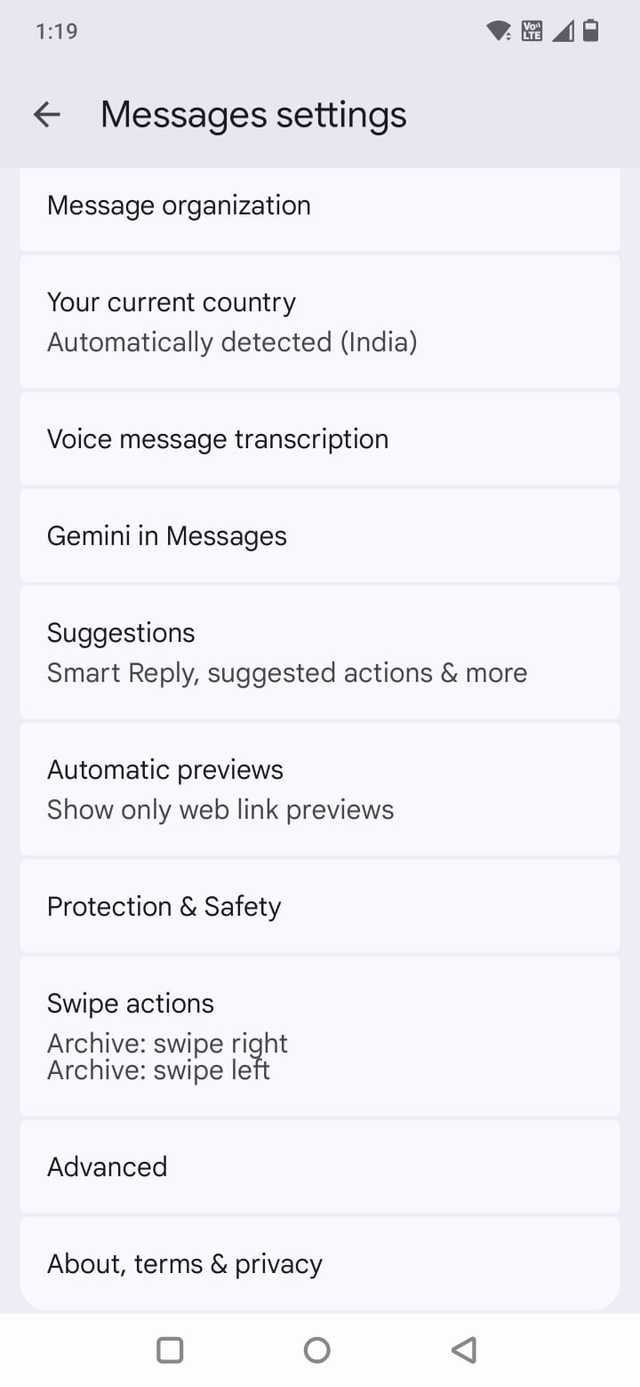
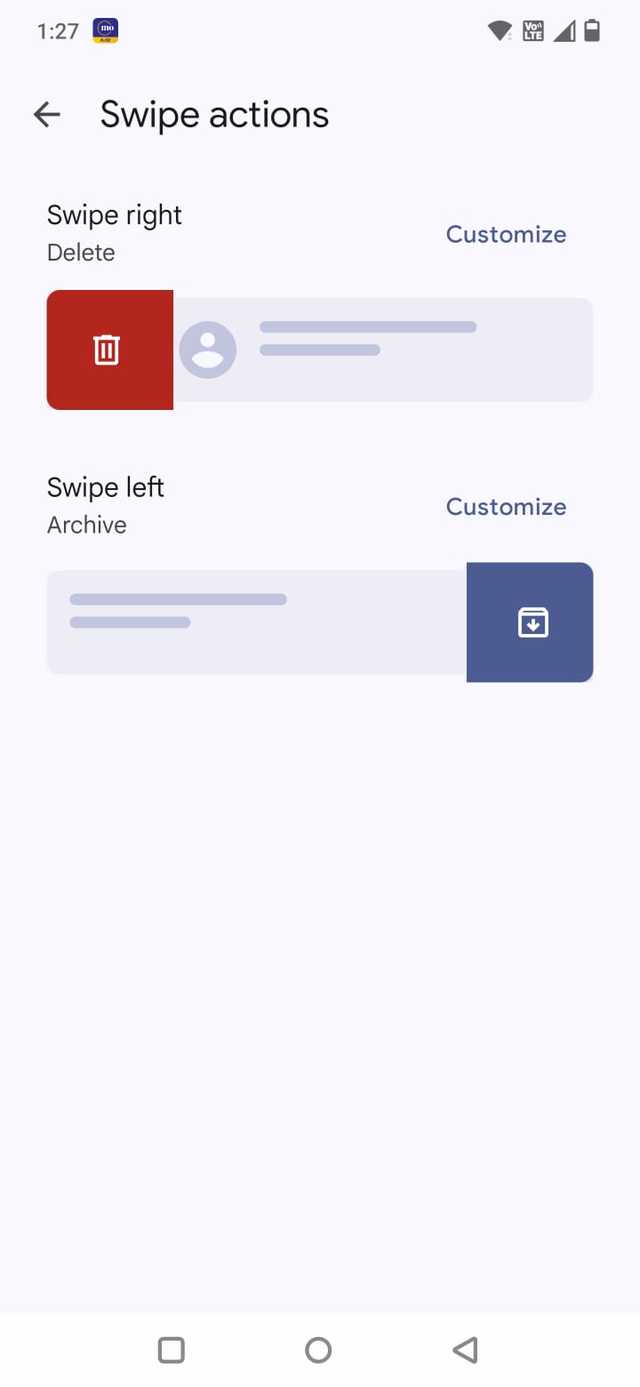
In Google Messages, you can swipe to archive a conversation. It disappears from the main inbox but does not get deleted.
I began treating my inbox like a task list where ongoing conversations stay, and finished ones get archived. That keeps the main view focused only on active or relevant threads.
You can customize the swipe action under Messages settings > Swipe actions.
Important texts do not get lost beneath old delivery confirmations and casual chats from last week.
You can view your archived chats in Google Messages by tapping your profile icon and selecting Archived.

I always raved about this genius Google Messages feature — but I stopped using it
A smart feature with an unexpected cost
I did not need a new messaging app after all
At one point, I was ready to try messaging apps like Textra and Microsoft SMS Organizer since they offer strong customization and built-in organization tools.
But when I actually spent time inside Google Messages and adjusted the settings properly, I realized I didn’t need to switch at all.
AFter I blocked and unsubscribed from repeat senders, auto-deleted OTPs, muted group chats, and archived old threads, the app felt calmer and more usable.
News
Berita Teknologi
Berita Olahraga
Sports news
sports
Motivation
football prediction
technology
Berita Technologi
Berita Terkini
Tempat Wisata
News Flash
Football
Gaming
Game News
Gamers
Jasa Artikel
Jasa Backlink
Agen234
Agen234
Agen234
Resep
Cek Ongkir Cargo
Download Film
Comments are closed, but trackbacks and pingbacks are open.